Session 12: ROS2 Services, Parameters & Actions
Week: 12 Element: ICTPRG439 Element 2.3 Duration: 4 hours Phase: ROS2 Foundations
Phase: ROS2 Advanced Communication
Session Introduction
This session extends your ROS2 knowledge beyond asynchronous topic-based communication to explore synchronous services, runtime parameters, and goal-oriented actions. Building on the publisher/subscriber patterns from Session 11, you'll learn when and how to use different communication paradigms in robotics systems.
Services provide request-response communication for operations that need immediate feedback, like querying sensor status or triggering specific behaviors. Parameters enable runtime configuration of node behavior without recompilation. Actions enable long-running, goal-oriented tasks with continuous feedback, such as navigation to a waypoint or executing a complex manipulation sequence.
Through hands-on tutorials with turtlesim and practical exercises, you'll master the CLI tools for interacting with services, parameters, and actions, understand their architectural patterns, and recognize when to use each communication method in real-world robotics applications.
Learning Objectives
By the end of this session, you will have:
- Understood service request-response patterns and their use cases
- Mastered ROS2 service CLI tools for calling and inspecting services
- Learned parameter management for runtime node configuration
- Used parameter CLI tools to get, set, and persist configuration
- Explored action goal-feedback-result patterns for long-running tasks
- Used ROS2 action CLI tools to send goals and monitor feedback
- Compared communication paradigms (topics vs services vs parameters vs actions)
- Recognized appropriate use cases for each communication method
Session Structure
- Communication Paradigms Overview - Topics vs Services vs Parameters vs Actions
- ROS2 Services Tutorial - Interactive service exploration
- ROS2 Parameters Tutorial - Runtime configuration management
- ROS2 Actions Tutorial - Goal-oriented task management
- Integration and Practice - Applying concepts and troubleshooting
- Webots ROS2 Instalation Not completed in session 5
Part 1: Communication Paradigms Overview
1.1 The Four Communication Methods
Parameters:
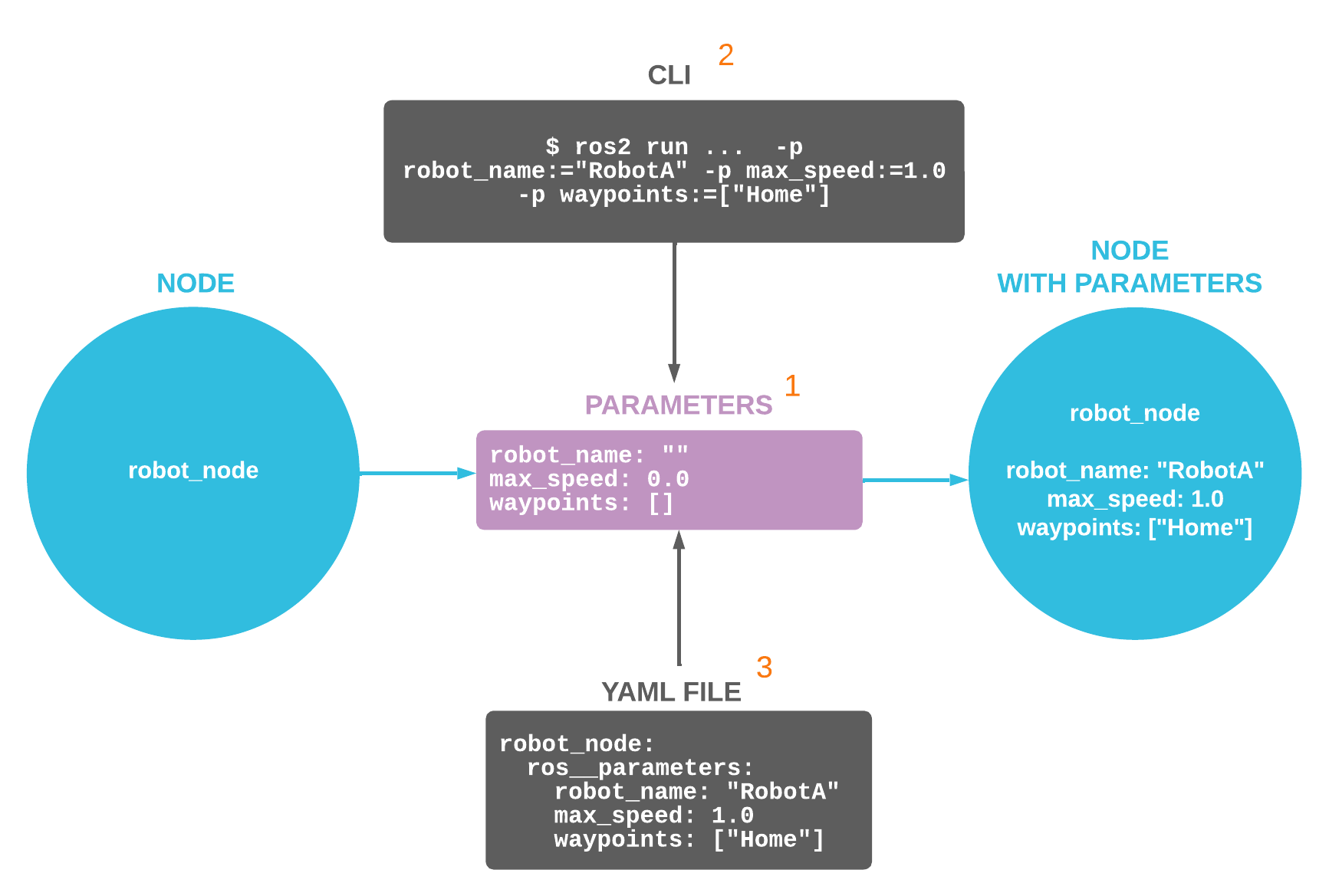
image source: https://foxglove.dev/blog/how-to-use-ros2-parameters
- Pattern: Configuration value storage
- Direction: Node-specific settings
- Timing: Get/set operations
- Use Case: Runtime configuration without restart
- Example: Background color, speed limits, sensor calibration
Services:
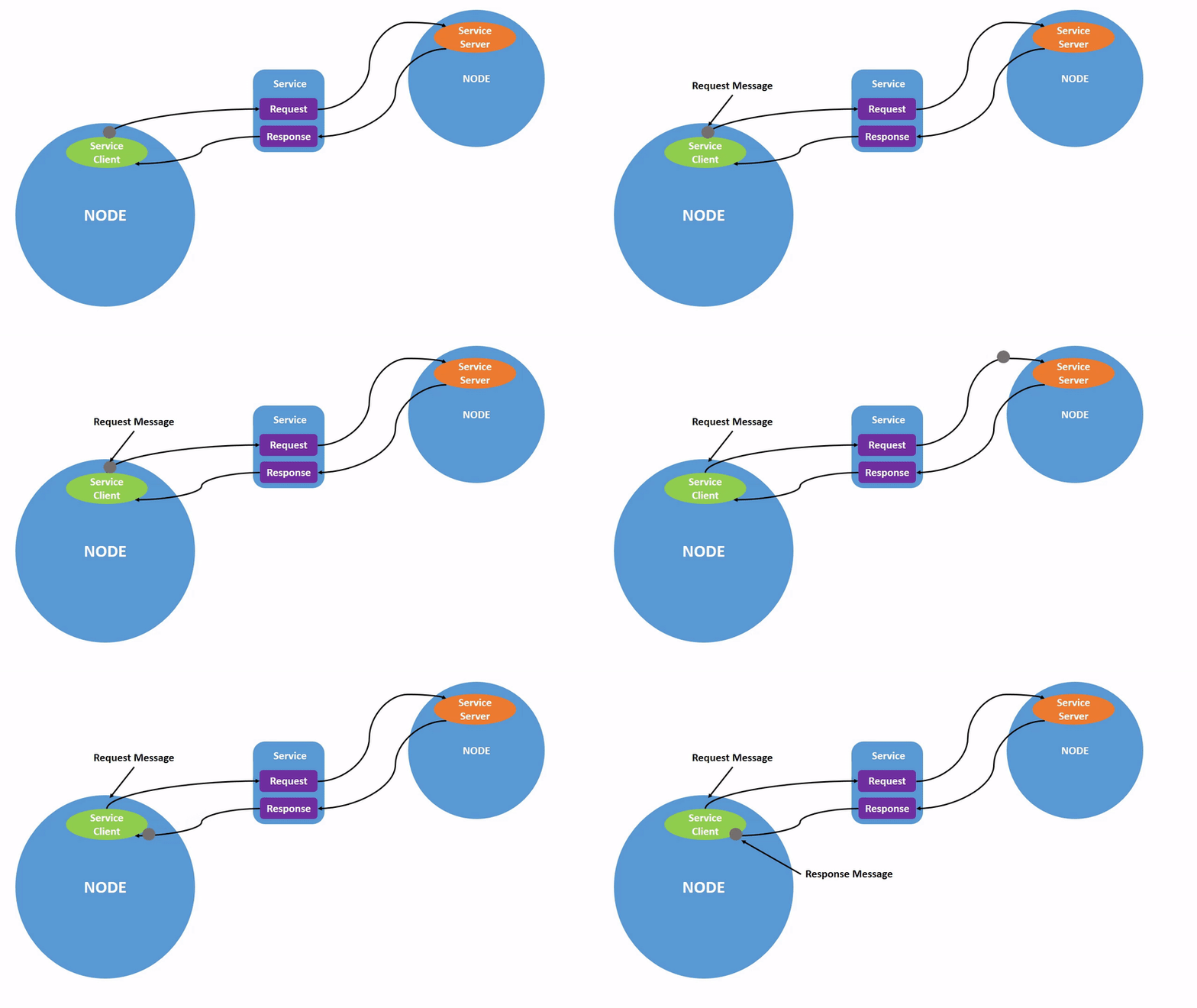 image source: https://docs.ros.org/
- Pattern: Synchronous request/response
- Direction: One-to-one (client-server)
- Timing: Blocking call, waits for response
- Use Case: Short operations requiring confirmation
- Example: Spawn new entity, change settings, query state
Actions:
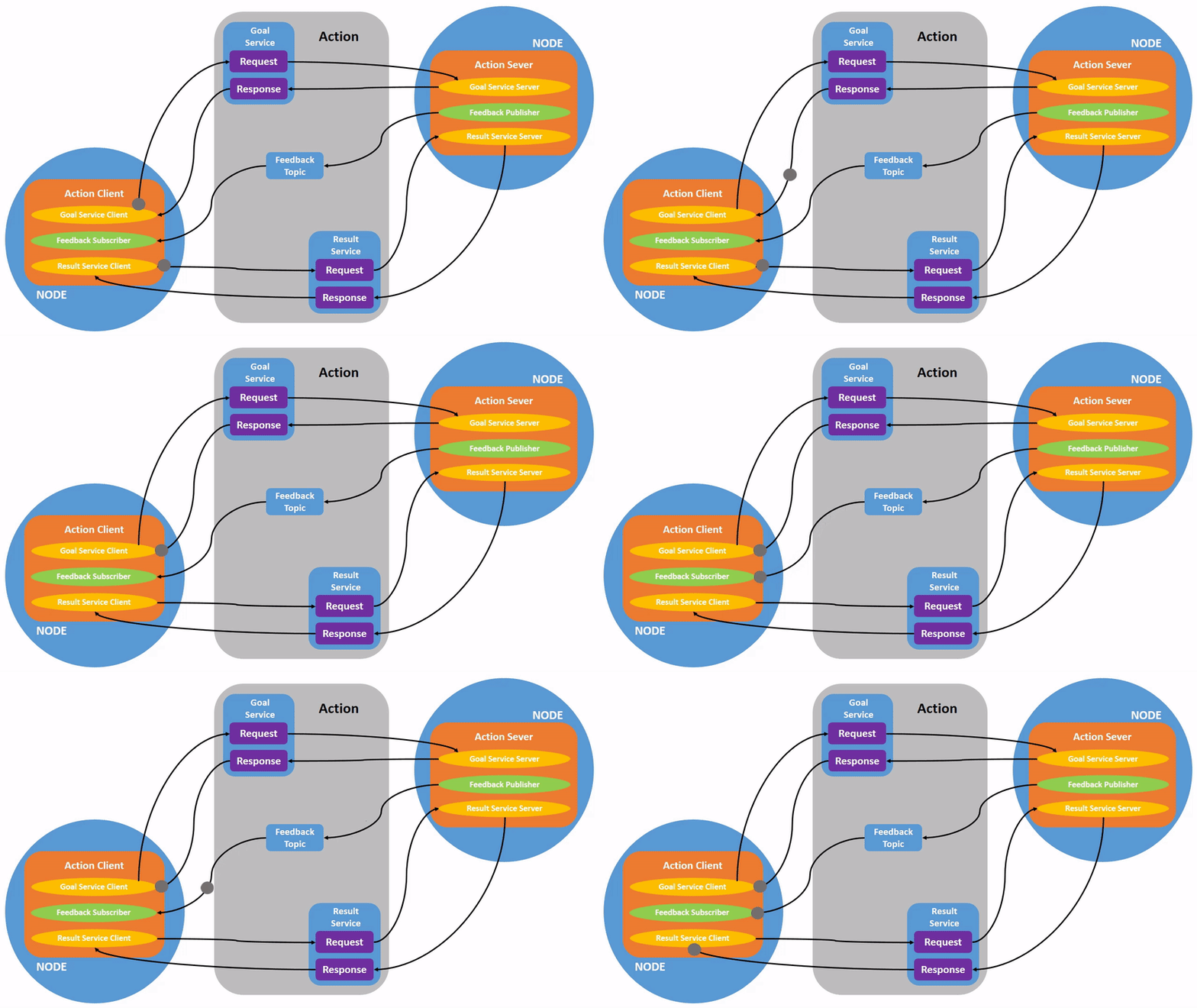 image source: https://docs.ros.org/
- Pattern: Goal-feedback-result with cancellation
- Direction: One-to-one with continuous updates
- Timing: Non-blocking goal submission, periodic feedback
- Use Case: Long-running tasks needing progress monitoring
- Example: Navigation to goal, pick-and-place, trajectory execution
Comparison Table:
| Feature | Topics | Services | Parameters | Actions |
|---|---|---|---|---|
| Communication | Asynchronous | Synchronous | Get/Set | Asynchronous |
| Response | None | Immediate | Immediate | Goal + Feedback + Result |
| Blocking | No | Yes | No | No (for goal submission) |
| Cancellation | N/A | No | N/A | Yes |
| Feedback | N/A | No | N/A | Yes (continuous) |
| Persistence | N/A | N/A | Can save/load | N/A |
| Typical Duration | Continuous | < 1 second | Instant | Seconds to minutes |
1.3 Real-World Robotics Examples
Topic Use Cases: - Streaming camera images at 30 Hz - Publishing laser scan data continuously - Broadcasting robot joint states - Sending velocity commands to mobile base
Service Use Cases: - Spawning a new object in simulation - Querying current robot mode/state - Changing LED color or display text - Clearing costmap in navigation - Saving/loading configuration
Parameter Use Cases: - Setting maximum velocity limits - Configuring PID controller gains - Adjusting sensor calibration values - Changing logging verbosity level - Setting algorithm thresholds
Action Use Cases: - Navigating to a goal position - Following a complex trajectory - Executing pick-and-place sequence - Docking with charging station - Performing calibration routine
Architectural Insight
Understanding when to use each method is crucial for efficient system design. Using topics for everything creates unnecessary complexity, while overusing services can cause blocking issues. Parameters provide clean configuration management, and actions provide the perfect middle ground for goal-oriented behaviors.
Part 2: ROS2 Services Tutorial
2.1 Understanding ROS2 Services
Tutorial Reference: Understanding ROS2 Services
Core Concept: Services implement client-server communication where a client sends a request and waits for a response from the server. This is a synchronous, blocking operation.
Service Structure:
2.2 Hands-On Service Exploration
Setup Environment:
# Source ROS2 (if not in ~/.bashrc)
source /opt/ros/foxy/setup.bash

# Set your domain ID
export ROS_DOMAIN_ID=<your_student_id_last_two_digits>

# Launch turtlesim
ros2 run turtlesim turtlesim_node
Discover Available Services:
Expected Output:
/clear
/kill
/reset
/spawn
/turtle1/set_pen
/turtle1/teleport_absolute
/turtle1/teleport_relative
/turtlesim/describe_parameters
/turtlesim/get_parameter_types
/turtlesim/get_parameters
/turtlesim/list_parameters
/turtlesim/set_parameters
/turtlesim/set_parameters_atomically
2.3 Service Type Inspection
Check Service Type:
# Get type of specific service
ros2 service type /clear
# Output: std_srvs/srv/Empty

ros2 service type /spawn
# Output: turtlesim/srv/Spawn
Find Services by Type:
# Find all services of a specific type
ros2 service find std_srvs/srv/Empty
# Output: /clear, /reset
2.4 Examining Service Definitions
View Service Interface:
# See service request/response structure
ros2 interface show std_srvs/srv/Empty
ros2 interface show turtlesim/srv/Spawn
Spawn Service Structure:
Understanding Service Definitions
The --- separator divides request (top) from response (bottom). The client provides request fields, the server returns response fields.
2.5 Calling Services from Command Line
Empty Service (No Arguments):
Service with Arguments:
# Spawn a new turtle at position (2, 2) with rotation 0.2
ros2 service call /spawn turtlesim/srv/Spawn "{x: 2, y: 2, theta: 0.2, name: 'turtle2'}"
Practical Exercise 1: Spawning Multiple Turtles
# Spawn turtle at different positions
ros2 service call /spawn turtlesim/srv/Spawn "{x: 1, y: 1, theta: 0, name: 'turtle3'}"
ros2 service call /spawn turtlesim/srv/Spawn "{x: 9, y: 9, theta: 3.14, name: 'turtle4'}"

# Verify new turtles exist by listing topics
ros2 topic list
# Should see /turtle3/... and /turtle4/... topics
2.6 Modifying Turtle Behavior with Services
Change Pen Settings:
# Set pen to red, width 5
ros2 service call /turtle1/set_pen turtlesim/srv/SetPen "{r: 255, g: 0, b: 0, width: 5, off: 0}"

# Now drive the turtle (new terminal)
ros2 run turtlesim turtle_teleop_key

# Turn off pen (no drawing)
ros2 service call /turtle1/set_pen turtlesim/srv/SetPen "{r: 255, g: 0, b: 0, width: 5, off: 1}"
Teleport Services:
# Absolute teleport (go to specific position)
ros2 service call /turtle1/teleport_absolute turtlesim/srv/TeleportAbsolute "{x: 5, y: 5, theta: 0}"

# Relative teleport (move relative to current position)
ros2 service call /turtle1/teleport_relative turtlesim/srv/TeleportRelative "{linear: 2.0, angular: 1.57}"
2.7 Practical Service Exercises
Exercise 1: Create a Turtle Formation
# Goal: Spawn 4 turtles in a square pattern
ros2 service call /spawn turtlesim/srv/Spawn "{x: 2, y: 2, theta: 0, name: 'corner1'}"
ros2 service call /spawn turtlesim/srv/Spawn "{x: 9, y: 2, theta: 0, name: 'corner2'}"
ros2 service call /spawn turtlesim/srv/Spawn "{x: 2, y: 9, theta: 0, name: 'corner3'}"
ros2 service call /spawn turtlesim/srv/Spawn "{x: 9, y: 9, theta: 0, name: 'corner4'}"
Exercise 2: Draw with Different Colors
# Clear screen
ros2 service call /clear std_srvs/srv/Empty

# Set blue pen
ros2 service call /turtle1/set_pen turtlesim/srv/SetPen "{r: 0, g: 0, b: 255, width: 3, off: 0}"

# Drive and draw
ros2 run turtlesim turtle_teleop_key

# Change to green without clearing
ros2 service call /turtle1/set_pen turtlesim/srv/SetPen "{r: 0, g: 255, b: 0, width: 3, off: 0}"
Exercise 3: Service Inspection
# List all available services
ros2 service list

# Find services you haven't explored yet
ros2 service type /turtle1/teleport_absolute

# Check what the service needs
ros2 interface show turtlesim/srv/TeleportAbsolute

# Try calling it
ros2 service call /turtle1/teleport_absolute turtlesim/srv/TeleportAbsolute "{x: 5.5, y: 5.5, theta: 0}"
2.8 Key Service Commands Reference
# Discovery
ros2 service list                          # List all services
ros2 service list -t                       # List with types
ros2 service find <type>                   # Find services by type

# Inspection
ros2 service type <service_name>           # Get service type
ros2 interface show <service_type>         # Show service definition

# Interaction
ros2 service call <service_name> <type> <args>  # Call a service
Part 3: ROS2 Parameters Tutorial (45 mins)
3.1 Understanding ROS2 Parameters
Tutorial Reference: Understanding ROS2 Parameters
Core Concept: Parameters are configuration values for nodes that can be read and modified at runtime. Think of them as settings or variables that control node behavior without requiring code changes or restarts.
Parameter Characteristics: - Node-specific - Each node has its own parameter set - Runtime modifiable - Change values while node is running - Persistent - Can save to/load from YAML files - Typed - Parameters have specific types (int, float, string, bool, etc.)
3.2 Hands-On Parameter Exploration
Setup:
Discover Available Parameters:
Expected Output:
3.3 Getting Parameter Values
Read Current Parameter Values:
# Get individual parameter values
ros2 param get /turtlesim background_r
ros2 param get /turtlesim background_g
ros2 param get /turtlesim background_b

# Get simulation time parameter
ros2 param get /turtlesim use_sim_time
Expected Output:
Default Background Color
The default turtlesim background is a light blue color (RGB: 69, 86, 255). We can change these values to customize the appearance.
3.4 Setting Parameter Values
Modify Parameters at Runtime:
# Change background to purple
ros2 param set /turtlesim background_r 150
ros2 param set /turtlesim background_g 50
ros2 param set /turtlesim background_b 200

# Clear screen to see the change
ros2 service call /clear std_srvs/srv/Empty
Practical Exercise 1: Color Exploration
# Try different color combinations

# Dark background (almost black)
ros2 param set /turtlesim background_r 10
ros2 param set /turtlesim background_g 10
ros2 param set /turtlesim background_b 10
ros2 service call /clear std_srvs/srv/Empty

# Green background
ros2 param set /turtlesim background_r 0
ros2 param set /turtlesim background_g 200
ros2 param set /turtlesim background_b 0
ros2 service call /clear std_srvs/srv/Empty

# Restore to default
ros2 param set /turtlesim background_r 69
ros2 param set /turtlesim background_g 86
ros2 param set /turtlesim background_b 255
ros2 service call /clear std_srvs/srv/Empty
3.5 Saving Parameters to File
Dump Parameters to YAML:
# Save current parameters to file
ros2 param dump /turtlesim > turtlesim.yaml

# View the saved file
cat turtlesim.yaml
Expected File Content:
/turtlesim:
  ros__parameters:
    background_b: 255
    background_g: 86
    background_r: 69
    use_sim_time: false
Edit Parameter File:
# Open file in text editor
nano turtlesim.yaml

# Modify values, for example:
/turtlesim:
  ros__parameters:
    background_b: 100
    background_g: 150
    background_r: 200
    use_sim_time: false

# Save and exit (Ctrl+O, Enter, Ctrl+X)
3.6 Loading Parameters from File
Apply Parameters from YAML:
# Load parameters from file
ros2 param load /turtlesim turtlesim.yaml

# Clear screen to see changes
ros2 service call /clear std_srvs/srv/Empty
Practical Exercise 2: Parameter Profiles
# Create different parameter profiles

# Create "dark_mode.yaml"
echo '/turtlesim:
  ros__parameters:
    background_b: 20
    background_g: 20
    background_r: 20
    use_sim_time: false' > dark_mode.yaml

# Create "ocean_mode.yaml"
echo '/turtlesim:
  ros__parameters:
    background_b: 180
    background_g: 100
    background_r: 0
    use_sim_time: false' > ocean_mode.yaml

# Switch between profiles
ros2 param load /turtlesim dark_mode.yaml
ros2 service call /clear std_srvs/srv/Empty

ros2 param load /turtlesim ocean_mode.yaml
ros2 service call /clear std_srvs/srv/Empty
3.7 Starting Nodes with Parameters
Launch with Parameter File:
# Start turtlesim with custom parameters
ros2 run turtlesim turtlesim_node --ros-args --params-file turtlesim.yaml
Set Parameters at Launch:
# Start with specific parameter values
ros2 run turtlesim turtlesim_node --ros-args -p background_r:=200 -p background_g:=100 -p background_b:=50
Parameter Best Practices
- Use parameter files for configuration management
- Create different profiles for different scenarios (testing, production)
- Document parameters and their valid ranges
- Use descriptive parameter names
- Consider parameter validation in your nodes
3.8 Key Parameter Commands Reference
# Discovery
ros2 param list                            # List all parameters for all nodes
ros2 param list /node_name                 # List parameters for specific node

# Getting Values
ros2 param get /node_name parameter_name   # Get single parameter value

# Setting Values
ros2 param set /node_name parameter_name value  # Set parameter value

# File Operations
ros2 param dump /node_name > file.yaml     # Save parameters to file
ros2 param load /node_name file.yaml       # Load parameters from file

# Launch with Parameters
ros2 run package node --ros-args --params-file file.yaml
ros2 run package node --ros-args -p param:=value
Part 4: ROS2 Actions Tutorial
4.1 Understanding ROS2 Actions
Tutorial Reference: Understanding ROS2 Actions
Core Concept: Actions enable long-running, goal-oriented tasks with three components: 1. Goal - What you want to achieve 2. Feedback - Periodic progress updates while executing 3. Result - Final outcome when complete
Why Actions vs Services? - Services block until complete (bad for long tasks) - Actions are non-blocking and provide progress updates - Actions support cancellation mid-execution - Actions show continuous feedback during operation
Action Structure:
Action Definition (*.action file):
---GOAL---
float32 target_angle
---RESULT---
float32 delta
---FEEDBACK---
float32 remaining
4.2 Hands-On Action Exploration
Setup:
# Turtlesim should still be running
# If not: ros2 run turtlesim turtlesim_node

# Open new terminal for teleop
ros2 run turtlesim turtle_teleop_key
Discover Available Actions:
Expected Output:
4.3 Action Information and Types
Inspect Action Details:
Expected Output:
View Action Definition:
RotateAbsolute Action Structure:
Action Components Explained
- Goal (theta): Target angle in radians to rotate to
- Result (delta): Angular difference achieved
- Feedback (remaining): How much rotation is left during execution
4.4 Sending Action Goals
Basic Action Goal:
# Rotate turtle to 1.57 radians (90 degrees)
ros2 action send_goal /turtle1/rotate_absolute turtlesim/action/RotateAbsolute "{theta: 1.57}"
Observe: - Turtle rotates to target angle - Command returns immediately with goal ID - Result shown when complete
Action Goal with Feedback:
# Rotate to -1.57 radians while showing feedback
ros2 action send_goal --feedback /turtle1/rotate_absolute turtlesim/action/RotateAbsolute "{theta: -1.57}"
Observe: - Continuous feedback messages during rotation - Shows remaining rotation angle - Final result displayed when complete
4.5 Practical Action Exercises
Exercise 1: Rotation Sequence
# Rotate through different angles and observe feedback
ros2 action send_goal --feedback /turtle1/rotate_absolute turtlesim/action/RotateAbsolute "{theta: 0}"
ros2 action send_goal --feedback /turtle1/rotate_absolute turtlesim/action/RotateAbsolute "{theta: 1.57}"
ros2 action send_goal --feedback /turtle1/rotate_absolute turtlesim/action/RotateAbsolute "{theta: 3.14}"
ros2 action send_goal --feedback /turtle1/rotate_absolute turtlesim/action/RotateAbsolute "{theta: -1.57}"
Exercise 2: Compare With and Without Feedback
# Without feedback (less verbose)
ros2 action send_goal /turtle1/rotate_absolute turtlesim/action/RotateAbsolute "{theta: 0}"

# With feedback (see progress)
ros2 action send_goal --feedback /turtle1/rotate_absolute turtlesim/action/RotateAbsolute "{theta: 3.14}"
Exercise 3: Full Circle Rotation
# Rotate 360 degrees (2*pi radians ≈ 6.28)
ros2 action send_goal --feedback /turtle1/rotate_absolute turtlesim/action/RotateAbsolute "{theta: 6.28}"

# Watch the feedback showing remaining angle decrease
4.6 Understanding Action Feedback
What Feedback Provides: - Progress monitoring - See how far along task is - Status updates - Know task is still executing - Debugging information - Identify if task is stuck - User feedback - Show progress in UI
Feedback vs Result: - Feedback: Published continuously during execution - Result: Published once when task completes
Practical Demonstration:
# Start action with feedback
ros2 action send_goal --feedback /turtle1/rotate_absolute turtlesim/action/RotateAbsolute "{theta: 4.71}"

# Observe output format:
# Feedback: remaining: 4.5...
# Feedback: remaining: 3.2...
# Feedback: remaining: 1.8...
# Feedback: remaining: 0.5...
# Result: delta: 4.71
4.7 Key Action Commands Reference
# Discovery
ros2 action list                           # List all actions
ros2 action list -t                        # List with types

# Inspection
ros2 action info <action_name>             # Get action details
ros2 interface show <action_type>          # Show action definition

# Interaction
ros2 action send_goal <action_name> <type> <goal>           # Send goal
ros2 action send_goal --feedback <action_name> <type> <goal> # With feedback
Part 5: Integration and Practice
5.1 Comparing All Communication Methods
Hands-On Comparison Exercise:
1. Using Topics (Asynchronous):
# Publish velocity commands (continuous stream)
ros2 topic pub --rate 1 /turtle1/cmd_vel geometry_msgs/msg/Twist \
  "{linear: {x: 2.0, y: 0.0, z: 0.0}, angular: {x: 0.0, y: 0.0, z: 1.8}}"

# No response, no feedback, continuous publishing
# Stop with Ctrl+C
2. Using Parameters (Configuration):
# Change background color (immediate setting change)
ros2 param set /turtlesim background_r 200
ros2 service call /clear std_srvs/srv/Empty

# Immediate effect, configuration persists
# Can save to file for later use
3. Using Services (Synchronous):
# Teleport turtle (immediate one-time operation)
ros2 service call /turtle1/teleport_absolute turtlesim/srv/TeleportAbsolute \
  "{x: 5.5, y: 5.5, theta: 0}"

# Immediate response with result
# Single request-response transaction
4. Using Actions (Goal-Oriented):
# Rotate to angle (long-running with feedback)
ros2 action send_goal --feedback /turtle1/rotate_absolute \
  turtlesim/action/RotateAbsolute "{theta: 3.14}"

# Non-blocking goal submission
# Continuous feedback during execution
# Final result when complete
5.2 Best Practices Summary
When to Use Each Method:
Use Topics When:
- ✅ Data needs continuous streaming
- ✅ Multiple subscribers need same data
- ✅ Low-latency communication critical
- ✅ Fire-and-forget acceptable
- ❌ Don't need confirmation of receipt
Use Parameters When:
- ✅ Need to configure node behavior
- ✅ Settings may change at runtime
- ✅ Want to save/load configurations
- ✅ Need node-specific settings
- ❌ Need real-time data streaming
Use Services When:
- ✅ Need immediate response
- ✅ Operation completes quickly (< 1 second)
- ✅ Request-response pattern appropriate
- ✅ Need confirmation of success/failure
- ❌ Operation might take significant time
Use Actions When:
- ✅ Task takes significant time (> 1 second)
- ✅ Need progress feedback during execution
- ✅ May need to cancel mid-operation
- ✅ Want to monitor task status
- ❌ Need continuous data stream
TASK - Webots-ROS2 Integration
Webots ROS2 Package Installation
Reference Documentation: https://github.com/cyberbotics/webots_ros2/wiki/Getting-Started
Installation Process Workspace Setup:
Create ROS2 workspace directory structure Clone webots_ros2 repository Install package dependencies Build using colcon build system Key Steps Overview: 1. Workspace Creation - Establish src/ directory structure 2. Repository Cloning - Download webots_ros2 source code 3. Dependency Resolution - Install required packages 4. Colcon Build - Compile and install packages 5. Environment Sourcing - Update ROS2 environment
Verification and Testing Installation Verification: - Check package installation success - Verify Webots can launch ROS2 nodes - Test basic robot simulation with ROS2 integration
Session Summary
This session provided comprehensive coverage of ROS2 communication methods:
- Understood four communication paradigms and their appropriate use cases
- Mastered ROS2 service tools for synchronous request-response interactions
- Learned parameter management for runtime node configuration
- Explored action mechanisms for long-running goal-oriented tasks
- Practiced with turtlesim to see all methods in operation
- Recognized architectural patterns for choosing the right communication method
Key Takeaways: - Topics provide asynchronous data streaming for continuous information - Parameters enable runtime configuration without code changes - Services provide synchronous request-response for quick operations - Actions enable goal-oriented tasks with feedback and cancellation - Choose communication method based on task characteristics and requirements - CLI tools are essential for testing and debugging all communication types
Preparation for Next Session
For Session 13 on custom interfaces and package development:
- Practice all four communication methods with different arguments
- Experiment with combining topics, services, parameters, and actions
- Create parameter files for different turtlesim configurations
- Review interface definitions using
ros2 interface show - Consider scenarios where each method would be most appropriate
Question 1: When should you use a service instead of a topic for communication?
Click to reveal answer
Answer:
Use a service when you need: - Immediate response confirming the operation succeeded or failed - Quick operation that completes in less than 1 second - Request-response pattern (client asks, server responds) - One-time interaction rather than continuous data stream
Example: Spawning a turtle, changing settings, or querying current state.
Question 2: What is the difference between setting a parameter and calling a service?
Click to reveal answer
Answer:
Parameters are for configuration values that control node behavior (like settings). You get/set them to change how a node operates.
Services are for operations or actions that a node can perform (like spawning a turtle or clearing the screen). You call them to trigger specific behaviors.
Example: ros2 param set /turtlesim background_r 200 changes a setting, while ros2 service call /clear std_srvs/srv/Empty triggers an action.
Question 3: What are the three components of a ROS2 action and why is this useful for long-running tasks?
Click to reveal answer
Answer:
- Goal - Specifies what you want to achieve (e.g., target angle)
- Feedback - Provides continuous progress updates during execution (e.g., remaining rotation)
- Result - Returns final outcome when complete (e.g., total rotation achieved)
This is useful because: - You can monitor progress instead of waiting blindly - You can cancel if needed before completion - It's non-blocking so your program can do other things - You get confirmation when the task finishes
Navigation: ← Week 11 | Learning Plan | Week 13 →